Blog · Guides
Mac mini vs Mac Studio as a server
A workload-by-workload comparison of Mac mini and Mac Studio as servers: CI, iOS builds, LLM inference, video and remote desktop, with real monthly costs.
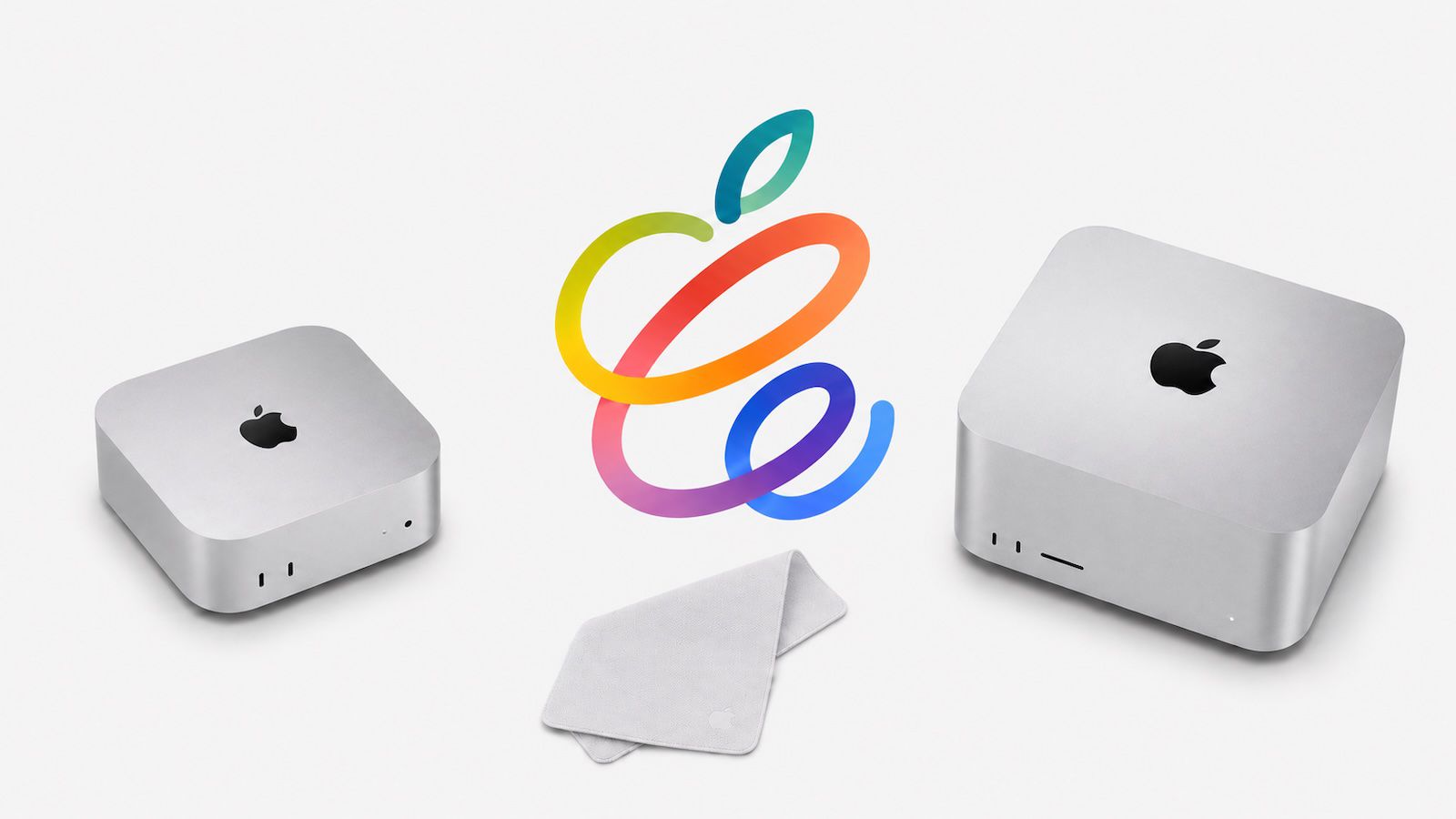
Choosing between a Mac mini and a Mac Studio as a server mostly comes down to memory and parallelism. This guide compares them workload by workload, with real monthly costs, so you can pick the right machine or the right mix.
The short version
For CI, iOS builds and remote desktop work, a Mac mini is usually the better value, and several Mac minis often beat one Mac Studio. For workloads that need a lot of memory in one place, such as larger language models or heavy media projects, a Mac Studio is the sensible choice. Everything else is detail.
Memory is the main decider
Apple silicon uses unified memory. The CPU, GPU and Neural Engine share one pool, and it cannot be upgraded after purchase. That makes memory the hardest constraint on a Mac server. CPU speed affects how fast a job runs; memory decides whether a job runs well at all.
The starting configurations we offer illustrate the range:
- Mac mini M4 and Mac mini M6: 16GB
- Mac mini M6 and Mac mini M5 Pro: 24GB
- Mac Studio M5 Max: 36GB
- Mac Studio M5 Ultra: 96GB
More memory or storage is available on request. If memory is not your constraint, the Mac Studio's extra headroom may be money spent on nothing.
Monthly cost from the catalogue
| Machine | Memory / SSD | Monthly | 6 months | 12 months |
|---|---|---|---|---|
| Mac mini M4 | 16GB / 256GB | $149 | $139 | $119 |
| Mac mini M6 | 16GB / 256GB | $169 | $159 | $129 |
| Mac mini M6 | 24GB / 512GB | $209 | $199 | $179 |
| Mac mini M5 Pro | 24GB / 512GB | — | $249 | $229 |
| Mac Studio M5 Max | 36GB / 512GB | — | $549 | $529 |
| Mac Studio M5 Ultra | 96GB / 1TB | — | $1,199 | $999 |
Prices are per month in USD for each machine's starting configuration. Mac mini M5 Pro and both Mac Studio models are 6- and 12-month terms only.
Mac mini M4
16GB · 256GB SSD
Everyday iOS builds, CI runners and remote macOS.
from $119/mo
- Monthly$149/mo
- 6 months$139/mo
- 12 months$119/mo
Mac mini M6
16GB · 256GB SSD
Newer chip for faster compiles and test runs.
from $129/mo
- Monthly$169/mo
- 6 months$159/mo
- 12 months$129/mo
Mac mini M6
Most popular24GB · 512GB SSD
More memory and storage for larger projects and caches.
from $179/mo
- Monthly$209/mo
- 6 months$199/mo
- 12 months$179/mo
Mac mini M5 Pro
24GB · 512GB SSD
Pro-class CPU and GPU for heavy builds and small models.
from $229/mo
- 6 months$249/mo
- 12 months$229/mo
Mac Studio M5 Max
36GB · 512GB SSD
High GPU throughput for ML, rendering and parallel CI.
from $679/mo
- 6 months$699/mo
- 12 months$679/mo
Mac Studio M5 Ultra
For AI96GB · 1TB SSD
96GB unified memory for large local LLMs and fine-tuning.
from $1,099/mo
- 6 months$1,299/mo
- 12 months$1,099/mo
Prices in USD per month for each machine's starting configuration. More memory, storage or several machines? Ask us.
Workload by workload
CI and general build automation
Most CI jobs are a sequence of short tasks: checkout, dependency resolution, compile, test, upload. They benefit from fast single-thread performance and a warm cache more than from huge memory. A self-hosted runner normally takes one job at a time, so throughput scales with the number of machines rather than the size of one machine. For most teams, a pool of Mac minis is the efficient answer. Our macOS CI/CD runner page covers the setup.
iOS and macOS builds with Xcode
Xcode builds use many cores during compilation, and large projects with many Swift modules benefit from more cores and more memory. Simulator-based UI tests also consume memory, especially when several simulators run in parallel. As a rough guide:
- Small to medium apps: a 16GB Mac mini is fine.
- Large apps, parallel simulator testing: a 24GB Mac mini M6 or M5 Pro is more comfortable.
- Very large monorepos with heavy parallel testing on one machine: a Mac Studio can shorten wall-clock time, but two Mac minis splitting the work are often just as fast for less.
See iOS CI/CD on a cloud Mac mini for a practical walkthrough.
LLM inference by model size
This is where the Mac Studio earns its place. A 4-bit quantised model needs roughly 0.5–0.7GB of memory per billion parameters, plus room for context. By default macOS lets the GPU use most of unified memory, roughly two-thirds to three-quarters. Rough sizing, which depends heavily on context length:
- 16GB: 7–8B models comfortably.
- 24GB: up to roughly 14B models.
- 36GB: roughly the 30B class.
- 96GB: 70B-class models at 4-bit.
You can split a model across several machines with tools such as llama.cpp's RPC backend or MLX's distributed features, but the network link becomes the bottleneck. For one large model, one machine with enough memory is simpler and usually faster. For many users of a small model, several Mac minis each serving a copy scale better. Our guide on local LLMs and Apple silicon memory goes deeper.
Rendering and video
In Apple's recent generations, Max and Ultra chips have had larger GPUs and more media engines than the base chips, which helps with GPU rendering, multi-stream video encoding and large timelines. Large projects also benefit from more memory and storage. If rendering or encoding is the core workload, a Mac Studio is usually worth it. For occasional transcodes or light motion graphics, a Mac mini is enough.
Remote desktop
For interactive work over a remote desktop tool, the bottleneck is usually the network, not the Mac. A Mac mini handles Xcode, browsers and design tools comfortably. Choose a Mac Studio only if the work you do on that desktop needs it.
When two Mac minis beat one Mac Studio
On 12-month terms, two Mac mini M6 24GB machines cost $358 per month, against $529 for one Mac Studio M5 Max. Three of them cost about the same as one Mac Studio M5 Max. Several Mac minis win when:
- Your work is many independent jobs, such as CI pipelines or test shards.
- You want redundancy, so one machine down does not stop the pipeline.
- You serve a small model to many users and can load-balance across copies.
- You want to separate environments, for example release builds and experiments.
Read how to set up a Mac mini cluster if you are heading this way.
When one Mac Studio beats two Mac minis
- A single job needs more memory than any Mac mini has, such as a 30B or 70B-class model.
- GPU-heavy rendering or video work benefits from a larger GPU in one machine.
- You want one machine to manage instead of a fleet.
- Large datasets or projects need to stay on one fast internal SSD.
Decision table
| Workload | Suggested machine | Why |
|---|---|---|
| CI runner, light builds | Mac mini M4 or M6 16GB | Lowest cost per runner |
| Large iOS app builds | Mac mini M6 24GB or M5 Pro | More memory for simulators and big projects |
| Build farm | Several Mac minis | Throughput scales with machine count |
| 7–8B LLM | Mac mini 16GB | Fits comfortably |
| Up to ~14B LLM | Mac mini 24GB | Room for model and context |
| ~30B-class LLM | Mac Studio M5 Max | Needs 36GB in one machine |
| 70B-class LLM | Mac Studio M5 Ultra | Needs 96GB in one machine |
| Rendering, multi-stream video | Mac Studio | Larger GPU and media engines |
| Remote desktop development | Mac mini | Network, not hardware, is the limit |
FAQ
Is a Mac mini or Mac Studio better as a server?
A Mac mini is better value for CI, builds and remote desktop. A Mac Studio is better when one job needs a lot of memory or GPU, such as large language models or rendering.
Can I start with a Mac mini and move to a Mac Studio later?
Yes. You can change term or cancel at the end of a term in your account, and order a different machine. Keep your setup scripted so moving is quick.
Can I get more memory than the starting configuration?
Yes, more memory or storage is available on request. Tell us what you need.