Blog · Guides
Mac mini M4 vs Mac Studio for Cloud Hosting
The entry Mac mini M4 against Mac Studio M5 Max and M5 Ultra, workload by workload: CI, iOS builds, LLMs by size, agents and rendering, with monthly costs and when to scale out.
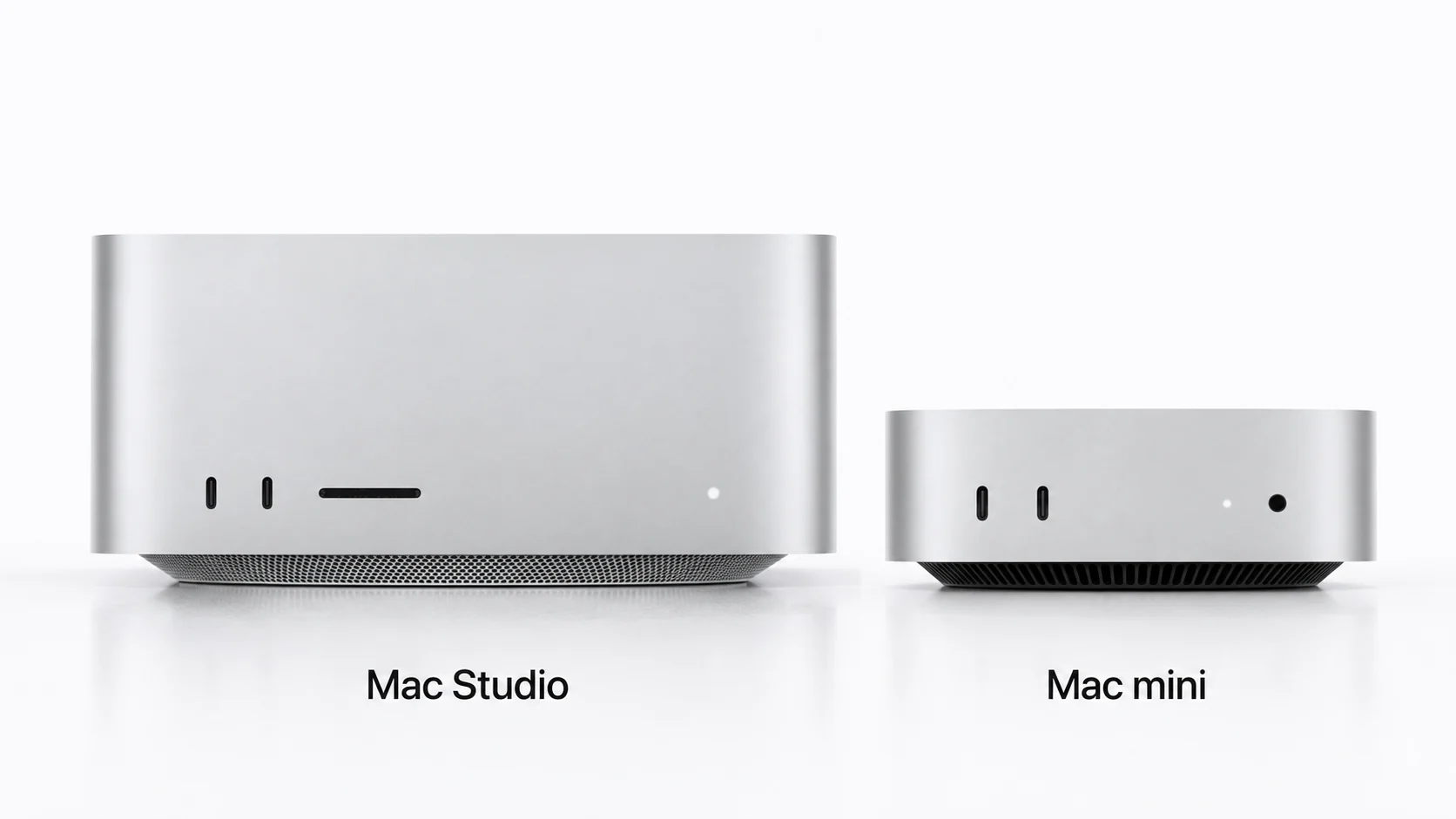
Mac mini M4 vs Mac Studio for cloud hosting is mostly a question of memory and parallelism, not prestige. This post compares our entry machine with the two Mac Studio models, one workload at a time.
How this differs from our earlier comparison
Our post on Mac mini vs Mac Studio as a server looks at the two families in general. Here we narrow it down to the three machines people most often weigh against each other: the Mac mini M4 that most customers start on, and the Mac Studio M5 Max and M5 Ultra they consider when the mini feels small.
Mac mini M4 vs Mac Studio: the three machines
| Machine | Memory | SSD | Monthly | 6 months | 12 months |
|---|---|---|---|---|---|
| Mac mini M4 | 16GB | 256GB | $149/mo | $139/mo | $119/mo |
| Mac Studio M5 Max | 36GB | 512GB | Not offered | $549/mo | $529/mo |
| Mac Studio M5 Ultra | 96GB | 1TB | Not offered | $1,199/mo | $999/mo |
Prices are for each starting configuration. More memory or storage is available on request. Every machine is a dedicated physical Mac, not a share of one.
Two practical differences stand out before any benchmark. First, the Mac mini M4 can be rented month to month, while the Mac Studio models are 6- or 12-month terms. Second, at 12-month pricing one Mac Studio M5 Max costs about the same as four Mac mini M4 machines ($529 vs $476), and one M5 Ultra about the same as eight ($999 vs $952). That ratio frames every decision below.
CI and build agents
Most CI jobs are bounded by how many run at once, not by how fast one runs. A single Mac mini M4 handles a steady queue of builds and unit tests for a small team. When jobs start waiting, adding a second mini doubles concurrency and gives you a spare if one is busy with a long job.
A Mac Studio helps when single jobs are heavy: very large monorepos, many UI test simulators at once, or builds that run out of memory on 16GB. For a typical team, several minis give more throughput per dollar than one Studio. See macOS CI/CD runner for runner setup.
iOS builds and Xcode work
For one developer working in Xcode over remote desktop, the Mac mini M4 is a sensible start. Memory is the limit you hit first: a big project, Simulator, a browser and Instruments together can fill 16GB. When that happens, the next step is often a Mac mini M6 with 24GB rather than a Studio.
The Studio makes sense for a shared build server that compiles a large app many times a day, or for teams running UI tests across several Simulator devices in parallel on one machine.
Local LLMs by model size
For local models, memory decides what fits. As a rule of thumb, a 4-bit quantised model needs roughly 0.5 to 0.7GB per billion parameters, plus room for context. By default macOS lets the GPU use most of unified memory, roughly two-thirds to three-quarters.
| Model class (4-bit) | Mac mini M4 16GB | Mac Studio M5 Max 36GB | Mac Studio M5 Ultra 96GB |
|---|---|---|---|
| 7B to 8B | Comfortable | Comfortable, with long context | Comfortable, several at once |
| Around 14B | Tight or no | Comfortable | Comfortable |
| Around 30B | No | Roughly fits, depends on context | Comfortable |
| 70B class | No | No | Roughly fits, depends on context |
If you only need a small model for embeddings, classification or a coding assistant, the Mac mini M4 is enough, and it is the cheapest way to try. If the model you want is 30B or 70B class, no number of minis replaces a Studio for running it simply on one machine. Splitting one model across several Macs is possible with some tools, but it adds setup and network overhead. For more on sizing, read local LLMs on Apple silicon: memory.
AI agents
Most agents spend their time waiting on APIs, files and shells, not on heavy compute. A coding agent that calls a hosted model needs a reliable, always-on Mac more than a big one. A Mac mini M4 suits that well, and one mini per agent or per team keeps workloads apart.
The picture changes when the agent calls a local model. Then size the machine for the model, using the table above, and treat the agent itself as a small extra load. See AI agents on Mac mini for setups.
Rendering and media
Rendering, video export and 3D work scale with GPU and memory. The Mac mini M4 handles light jobs and previews. Large scenes, high-resolution timelines and big texture sets are where 36GB or 96GB of unified memory matters, because the job can stay in memory instead of failing or swapping. If renders are independent frames, several minis can split the batch; if one scene is huge, the Studio is the simpler answer.
Storage and terms
Memory gets the attention, but disk fills first on many hosted Macs. The Mac mini M4 starts with 256GB. That is enough for one Xcode version, a few Simulator runtimes and a handful of small models, but not much more. The Mac Studio M5 Max starts at 512GB and the M5 Ultra at 1TB, which leaves room for several Xcode versions, large caches and bigger model files. If storage is your only constraint, ask for a larger SSD on the mini before you move to a Studio.
Terms matter too. Because the Mac mini M4 is available month to month, it is the low-risk way to test a workload. Run your real jobs for a few weeks, watch memory pressure and disk use, and then decide whether to add minis or commit to a Studio for 6 or 12 months.
When to scale out with several minis
Choose several Mac mini M4 machines when:
- Your work splits into many independent jobs, such as CI builds, test shards or agent workers.
- You want isolation between projects, customers or teams.
- You want headroom to fail over if one Mac is busy or being updated.
- You want to start month to month and grow one machine at a time.
Choose a Mac Studio when:
- One job needs more memory than 16GB or 24GB can hold, such as a 30B or 70B-class model.
- One build or render is large and cannot be split.
- You prefer one machine to manage over several.
Our Mac mini cluster setup guide covers running several minis as one pool.
Mac mini M4
16GB · 256GB SSD
Everyday iOS builds, CI runners and remote macOS.
from $119/mo
- Monthly$149/mo
- 6 months$139/mo
- 12 months$119/mo
Mac Studio M5 Max
36GB · 512GB SSD
High GPU throughput for ML, rendering and parallel CI.
from $599/mo
- 6 months$699/mo
- 12 months$599/mo
Mac Studio M5 Ultra
For AI96GB · 1TB SSD
96GB unified memory for large local LLMs and fine-tuning.
from $1,299/mo
- 6 months$1,399/mo
- 12 months$1,299/mo
Prices in USD per month for each machine's starting configuration. More memory, storage or several machines? Ask us.
A simple way to decide
Start with the job that matters most and ask one question: does it need more memory than a mini has? If not, start with a Mac mini M4 month to month and add machines as queues grow. If yes, pick the Studio whose memory fits the job, using the LLM table as a guide. If your workload sits in between, or you need a custom memory configuration, tell us what you need.